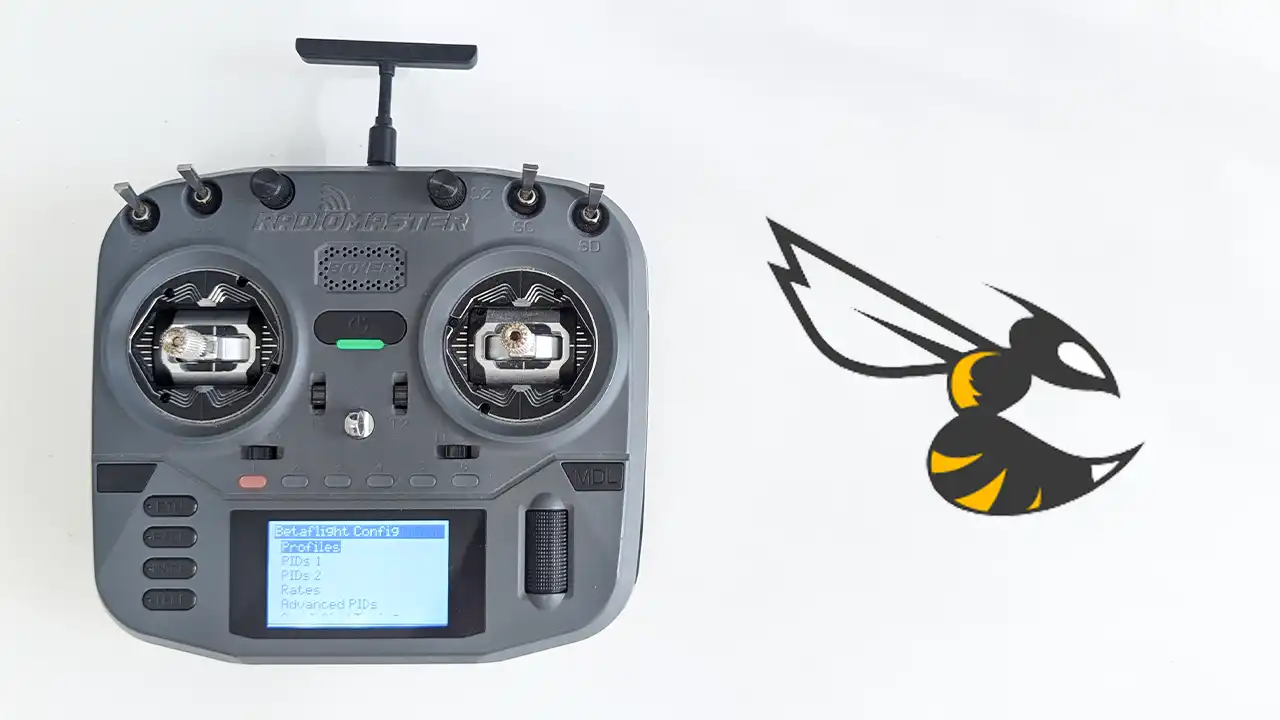
Betaflight in your Remote Controller
Adjust Betaflight settings directly from your EdgeTX radio using the Betaflight Lua Script
Prerequisites
Before you start, ensure you have the following:
- Betaflight - As a best practice, it is recommended to use the most recent stable release of Betaflight to obtain the best possible results
- Telemetry - Telemetry has to be enabled in Betaflight Receiver tab and supported by the TX / RX for the script to be able to communicate with the FC
- EdgeTX 2.4.0 or newer
- ExpressLRS - V3.0.1 or newer
- TBS Crossfire/Tracer TX / RX - v2.11 or newer
- FrSky TX / RX with support for SmartPort
Limits of the Lua Script
The Lua Script doesn’t allow you to adjust all Betaflight settings, it is not the full configurator, however it does let you adjust the most common settings you would want in the field, even PID-tune and change rates.
Setting up on the Transmitter
Firstly, download the latest build of the Lua Script from here

Note
The link above is to the nightly builds. This is due to some issues with the stable version that prevents the script from loading on some configurations.
To download the stable version, go here
Next, unzip the downloaded file, inside you’ll find a folder called obj.
Inside that folder, they’ll be two more folders: SCRIPTS and SOUNDS.

Next, you’ll have to access your remote’s SD Card contents. This can be done two different ways:
- Connect your remote controller via the USB Port (Radiomaster radios usually have two USB ports, use the top one in this case), once the dialog pops up, select USB Storage (SD).
- Remove the SD Card from your controller and plug it into an SD Card reader.
The SD Card will have the following structure:
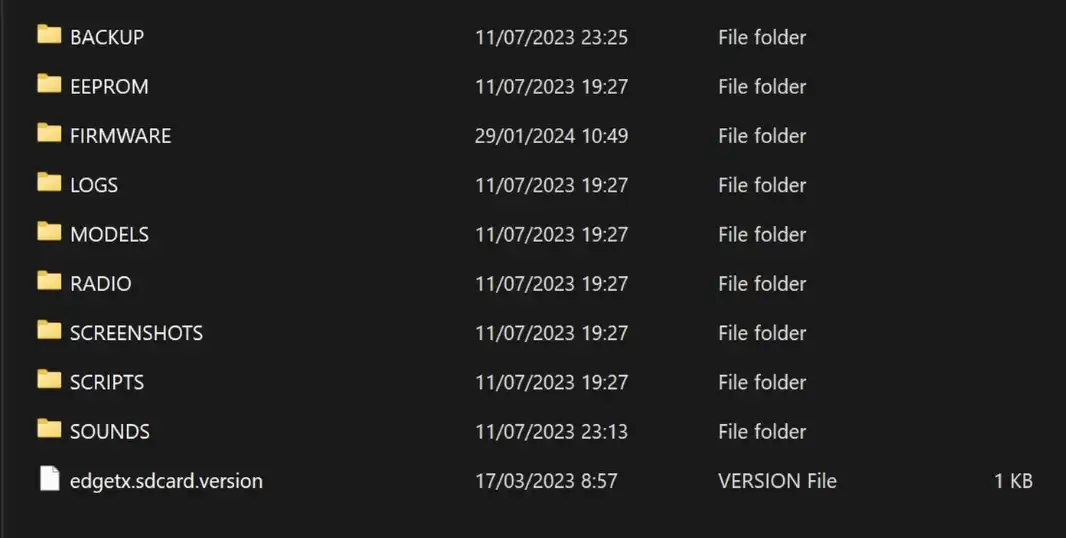
Installing is super simple, drag the two folders from inside the obj folder into the root directory of the SD Card.
Make sure to drag it inside the empty space of the root directory in your file explorer, not inside a subfolder.
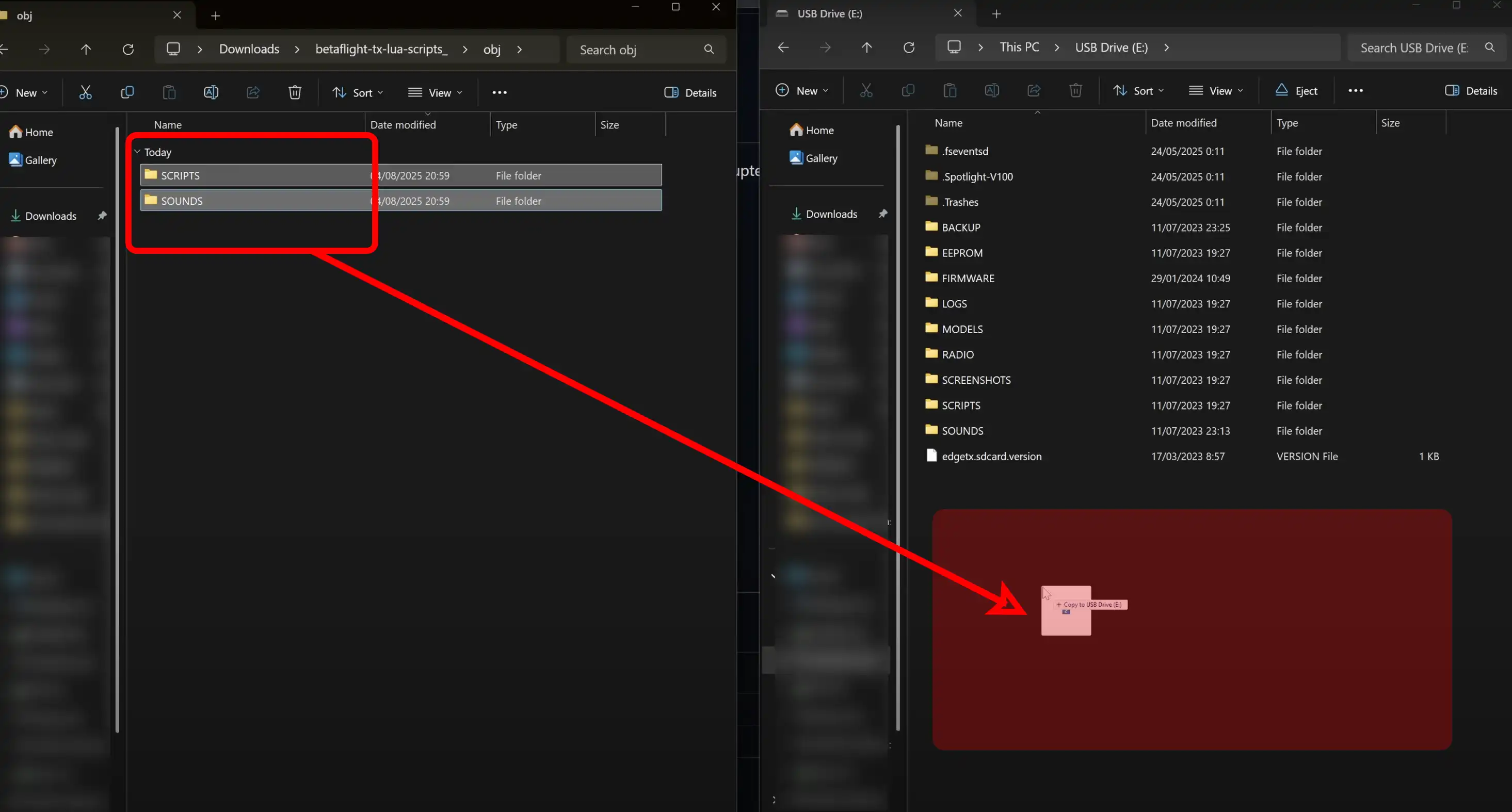
Once it is copied, the Lua Script has been successfully installed, however before using it, there is one more change to do inside Betaflight.
Setting up Betaflight
Connect your drone to Betaflight, and go to the Receiver tab, there make sure that Telemetry is on, and Save. If telemetry is off, the FC will not be able to communicate with the Lua Script.

Warning
Do not turn on MSP for the receiver.
Turning on MSP will reset your Ports upon detecting an invalid configuration.
Once the script is installed, and Betaflight configuration is done, let’s try to use the script!
Usage
On your remote controller, press the SYS button to go to the TOOLS menu, once there, you’ll see two new entries:
- Betaflight Setup
- Betaflight CMS
The Betaflight Setup is what most people will use, as it’s compatible with all RC protocols
Betaflight CMS lets you access the same CMS menu that is available in the OSD, however it’s only compatible with TBS Crossfire/Tracer
Info
The first time you click on the script, it might take a while to compile, and then return back to the home screen, click on it again to enter
Once it loads, it should look like so:

Note that the interface will be different on color-screen radios.
There is an important caveat of the Betaflight Setup script that you must know:
To save settings in the current page, hold the wheel, and in the dialog menu, tap Save page
