Battery percentage in your Betaflight OSD
Precisely know your battery's usage using the current meter in Betaflight
Intro
Have you ever looked at your Betaflight OSD and thought: battery voltage is cool, but I’d like to know the exact percentage of my battery? If so, then keep reading because this article will guide you through setting up the current meter in Betaflight, to know how many mAh the drone has consumed from the battery!
This is especially useful when flying long-range, as voltage is very non-linear, it’s hard to judge when to start heading back; this will eliminate that problem completely.
Requirements
-
For this feature to work, your ESC must have a current sensor and report the value to the Flight Controller, either via a dedicated wire, or ESC Telemetry. Luckily, the vast majority of modern ESCs do this.
-
For the battery percentage to be accurate, your battery capacity must match with the one defined in Betaflight. If batteries of different capacities are used, the value must be switched manually within Betaflight, or skip the percentage entirely and calculate by the reported
mAhmanually in-flight.
Caution
It is important to remember that this value, even when calibrated, might be occasionally be reported incorrectly (such by a loose wire), so always sanity-check before trusting the amp reading. Keep voltage as your main point-of-reference, and the current reading as a nice-to-have.
Setting up Betaflight
For this feature to work, prior setup is necessary in Betaflight, which consists of correctly setting the current source, adding the current element to the OSD, and most importantly, calibrating the current sensor.
Current source
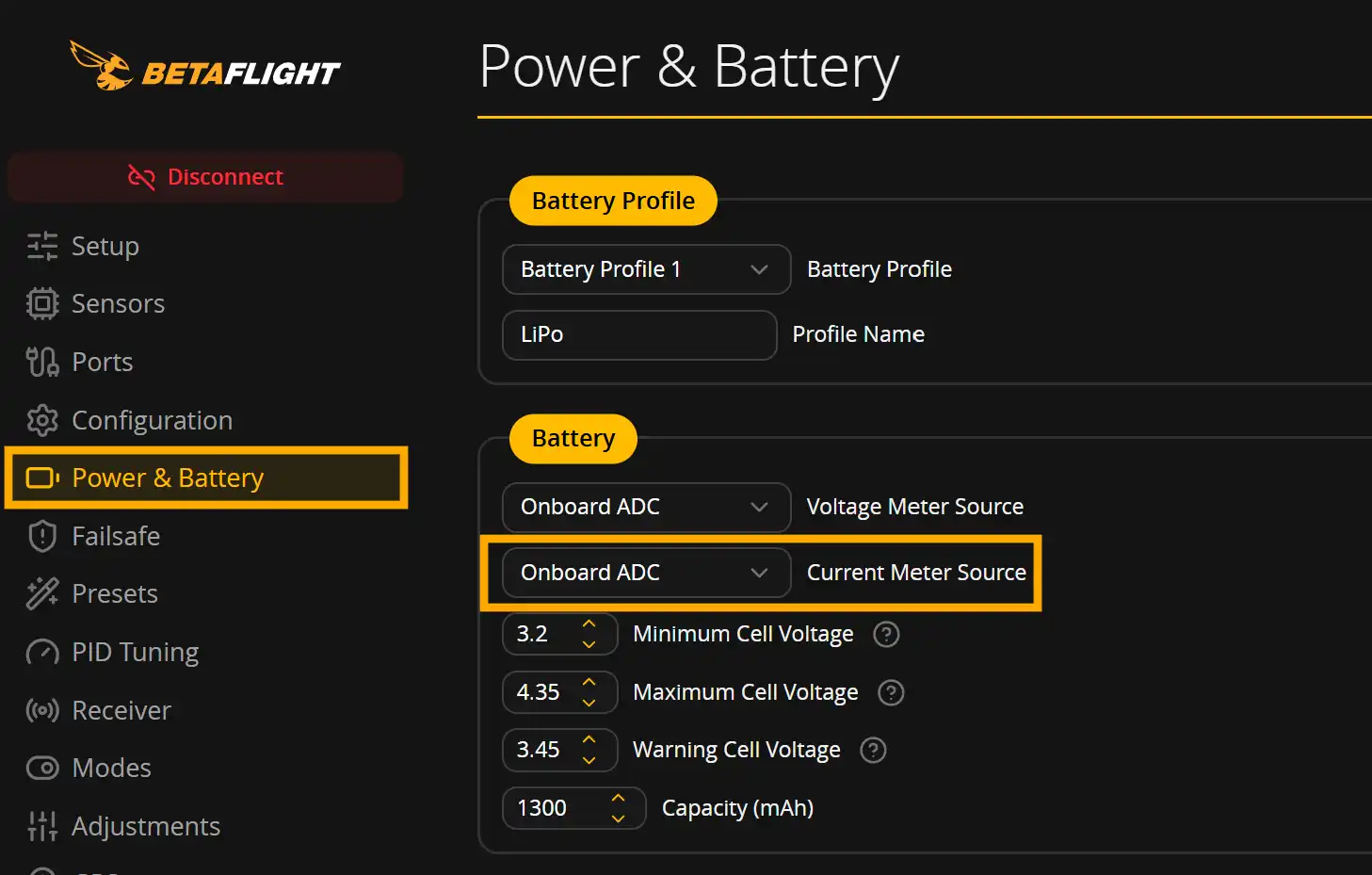
There are a couple ways of getting current readings into Betaflight:
-
Internal ADC: This is the most common way, as it’s supported by most ESCs, they have a shunt on the main power input, it sends a voltage over a dedicated wire to the FC (current pin in the ESC plug) and then an ADC (analog to digital converter) converts it to a digital value, which Betaflight can use.
This requires calibration to be useful, we’ll do just that in the next section**. To see if your ESC supports this, check the pinout of its plug, if it has a C (current) pin, then you’re good to go. -
ESC Sensor: Some ESCs send telemetry over a UART to the FC, which might include the current per-ESC channel. Most newer ESCs dropped support for this, as it’s more expensive (and not that useful) to put 4 separate current sensors (one per channel). If your ESC supports this though, and you already have ESC telemetry configured, this method is easier as it doesn’t require any calibration.
-
Virtual: Betaflight tries to approximate the mAh consumed based on other factors, this is usually not that accurate, even if calibrated. Only useful if there is no other way of getting current, such as the previous 2 methods. You can learn more about calibrating the virtual sensor here, as this article will focus on the Internal ADC instead.
Tip
I recommend trying out Internal ADC first, since it’s the most widely-supported, and only if that doesn’t work, try the other options.
In the Power & Battery tab, set the Current Meter Source accordingly, then Save.
OSD current elements
To see the actual current value in-flight, it has to be in the OSD, so let’s add it from the OSD tab!
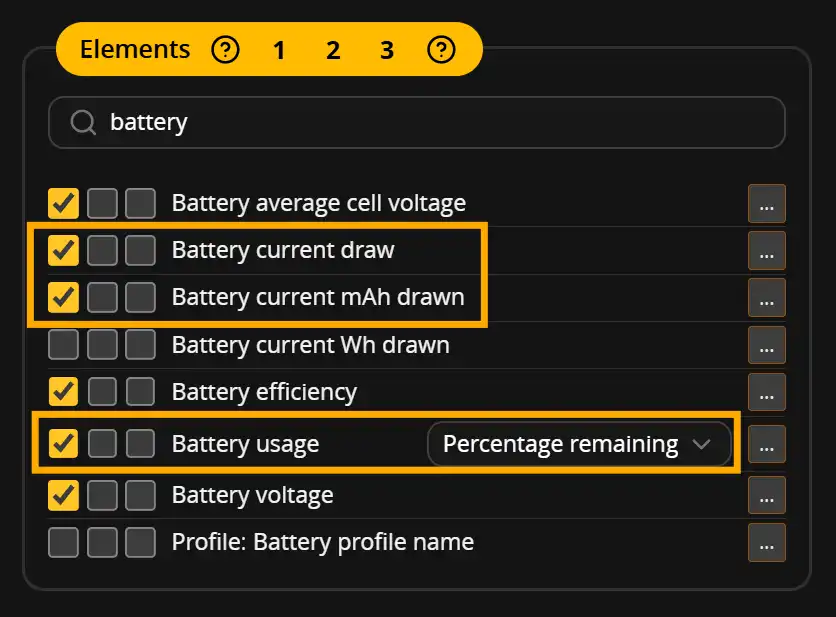
There are a couple of different elements that can display current in various ways, but I usually add the following:
-
Battery current draw: the immediate current drawn in real time, in Amps (A). This won’t show how much battery has been used or is remaining, just the current draw at that exact moment.
-
Battery current mAh drawn: the mAh that has been drawn from the battery by the drone. This one is useful for telling how much battery is left. Once it reaches the mAh of the battery, it’s essentially at 0%. For example, with a 1300mAh battery, aim to land at around 1000mAh.
-
Battery usage: shows the consumed/remaining percentage of the battery, either in numerical or graph form. This is only accurate if same capacity batteries are flown, and the capacity has been previously set in Betaflight Configurator.
Add whichever you find helpful, however current mAh drawn element is required for the next steps, calibration.
Alright, once the elements are in your OSD, it’s time to calibrate the sensors, so it shows real values.
Calibrating the current sensor
This is the most important step - calibration of the sensor:
Info
Some drones (like BNFs) might already come pre-calibrated, in which case this step can be skipped. However, it is important to confirm that it’s indeed the case. Follow the instructions regardless, and if you see that everything matches after the first flight, you’re good to go.
Scale calibration
- Fly a pack like normal, but on the end of the flight, note down the current mAh drawn value right before disarming.
- Charge the battery that you flew, and once it’s done charging, note down the mAh the charger put back into the battery.
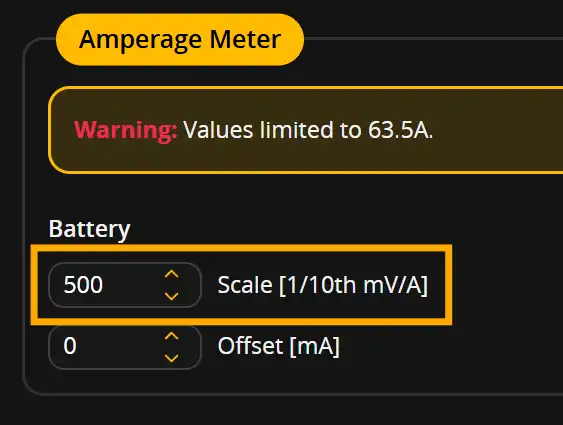
- In Betaflight’s Power & Battery tab, note down the Scale value under Amperage Meter
- Input the values you have into the following wizard:
Current Sensor Calibration
Fill in all three values to get your new Scale.
New Scale:
-
- Set the new Scale in Betaflight, don’t forget to save, then repeat the process 1 more time to confirm that the OSD-reported value matches (roughly ~100mAh) with what the charger put back into the battery.
- You can repeat this process as many times as you want, until you get to the desired precision.
Offset calibration
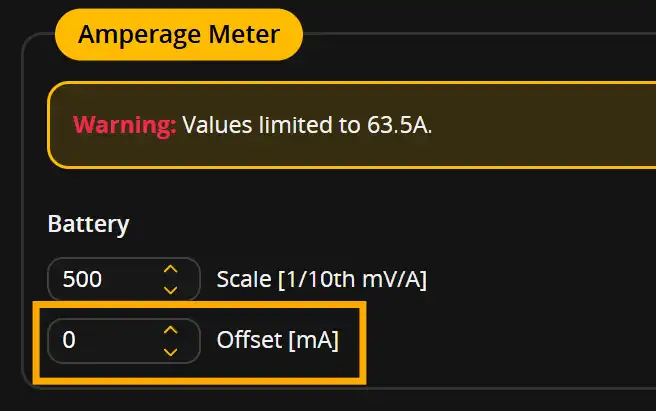
If you notice that after calibrating, the total mAh consumed match with what the charger reports, but while the drone is idle, the number drifts (it reports amperage consumption while motors are off), you can tweak the Offset (in mA) in the Battery tab. After doing so, you have to repeat the above steps for the scale calibration.
Note
This is usually an issue on most setups, however some ESC models can have it, which can be easily fixed by offset calibration.
Battery percentage calculation
Knowing the battery consumption in mAh and the power draw in A is really nice, but wouldn’t it be more useful to have the battery percentage in the OSD, like DJI drones do?
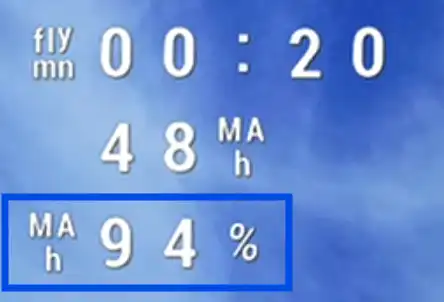
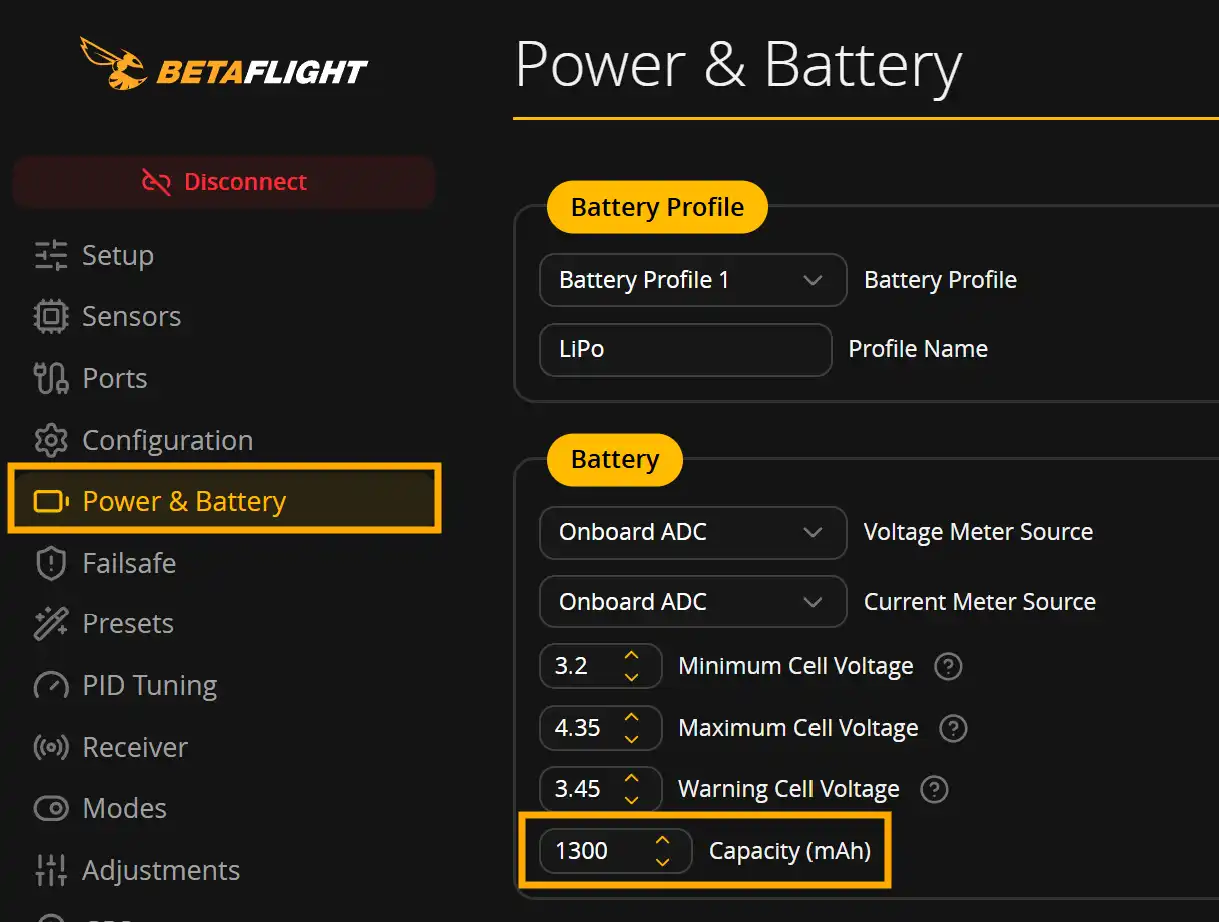
This is absolutely possible to do, although with one small caveat: Betaflight must know the battery capacity in advance to calculate the percentage remaining/used. So if all of your batteries are the same capacity, it’s pretty straightforward, simply set the capacity of your batteries in the Power & Battery tab, then add the Battery usage element to your OSD, set it to percentage remaining, and you’re done!
Betaflight 2026.06 battery profiles
The newly-released Betaflight 2026.06 added support for battery profiles (up to 3), which can have different capacities, so if you’re on the latest version, configure multiple battery profiles for different battery capacities, and switch between them using the in-flight adjustment (on a switch, for example) before the flight.