
OSD Profiles on a Switch
Switch your OSD with a switch on your remote!
Intro
Do you notice that your OSD is cluttered with information you would like to see occasionally, but don’t need to see it all the time? Then OSD Profiles are for you!
In this article you’ll learn how to customize up to 3 different profiles, and switch between them, even in-flight!
Prerequisites
- Drone with Betaflight firmware
- Betaflight Configurator
- A switch on your controller mapped to a spare AUX channel
What are Betaflight OSD Profiles?
OSD Profiles in Betaflight are like different pages where visibility of the OSD elements are saved.
The active profile can be switched manually from within Betaflight, however that is quite inconvenient in the field, so I will guide you through how to map it to a switch on your remote controller.
Backing up your Configuration
Caution
Before proceeding, backup your Betaflight configuration.
It is easy to mess up the settings, and it is always good to have a backup to restore from if necessary.
This can be easily done by going to:
- Presets tab
- Save backup
- Select a location to save the file


This way, if you mess up the configuration of the flight controller while following this guide, it will be easy to restore back by simply clicking Load Backup and selecting the .txt file.
Setting up multiple OSD profiles
Next, let’s set up multiple OSD profiles. This is quite easy!
Navigate to the OSD tab, you’ll see the list of the OSD elements that can be activated.
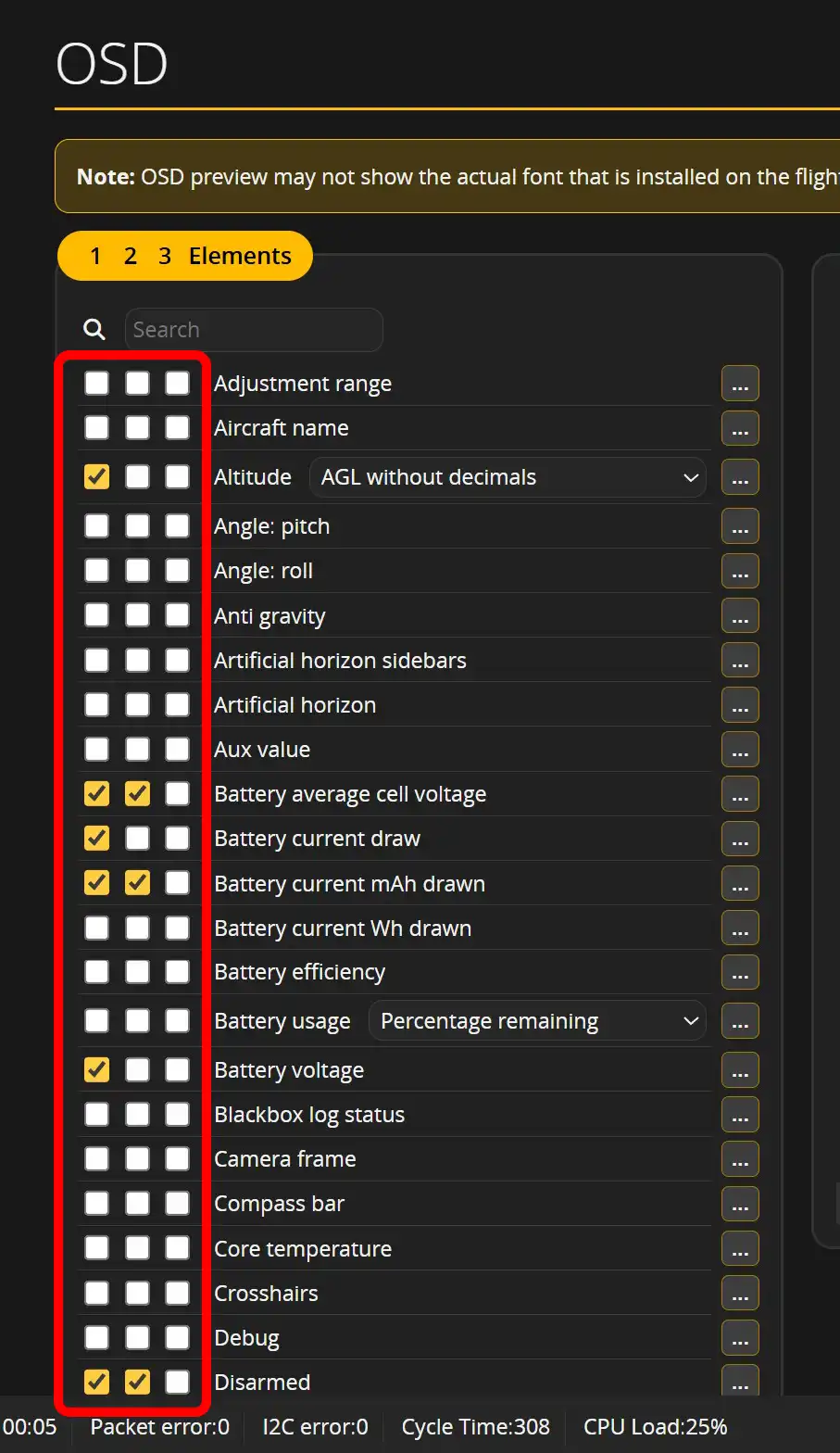
You’re probably already familiar with this tab, it lets you customize your OSD layout, and enable/disable elements; however you might have wondered why there are 3 checkboxes for each element - and this is where profiles come into play!
Each element can be enabled/disabled in each OSD profile, however the position of the element is absolute, not customizable per-profile.
To preview the profiles, there is a dropdown to change the currently previewed OSD layout:
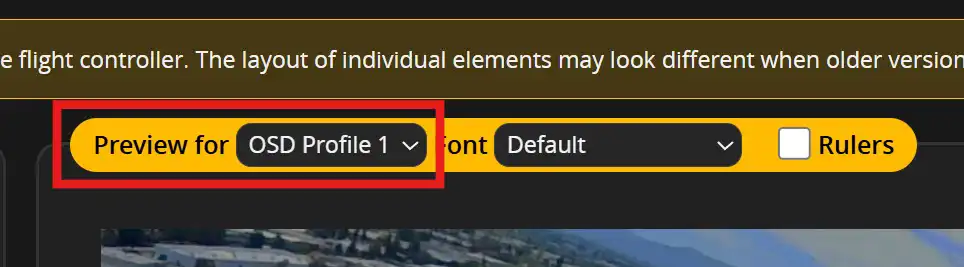
Once they’re all set up, you can switch between them in the Betaflight Configurator, or if you have the Betaflight Lua Script, that can also be used to switch between the profiles easily.
To change which OSD layout is actually getting rendered in-flight, there is another dropdown on the right side:

But let’s go one step further!
Switching OSD profiles using a switch
Let’s face it - it’s quite inconvenient to switch OSD profiles by connecting to Betaflight every time, or even using the Lua script on your remote, because you can’t do that in flight. So let’s tie OSD profiles to a switch!
This is quite simple to do.
First, you’ll need a switch mapped to an AUX channel. This article doesn’t go into the details on how to to that, it must be done in the remote controller.
Then, go to the Receiver tab in Betaflight, and note which AUX channel is tied to your switch - this will be important in the next step.

Next, go to Adjustments tab, find the first line that is unused, and enable it. Set when channel and via channel to the AUX channel that your switch is on. Drag the range across the whole channel, and set then apply to OSD Profile Selection.
It should look something like this:

Now you can flip the switch to swap between the configured OSD profiles!
Help! I cannot switch the OSD profile in Betaflight
After setting up the adjustment to the AUX channel, the current OSD profile depends on the switch position, so you will not be able to switch the profile manually in Betaflight.
You can always remove or disable the adjustment in the future if you want to revert to the default behavior or switch the active profile within the configurator.